Tutorial 1 of 6
Your first project in Codeharbor
Beginner 6 min
Open a template, find your way around the file tree, tabs and panels, add files and folders, and learn where Codeharbor keeps your work.
Codeharbor is a code editor that runs in your browser. A project is a set of files and folders — a small website, a TypeScript module, documentation or configuration files. There is nothing to install, and without an account everything stays in this browser.
Open a template
The first time you open Codeharbor it shows the template Web page. Choose File → Templates… to see all six:
- Web page —
index.html,style.cssandscript.jswith a small interactive page - TypeScript module —
src/main.tsimporting two helper modules, run in the console - Canvas sketch — a drawing on
<canvas>with its own small helper library - Markdown docs — a README and two documentation pages with tables and code
- JSON/YAML config — configuration files to check and format
- Python script — a script to edit here and run on your computer
A template opens as a new project; the project you had open stays under File → Recent projects….
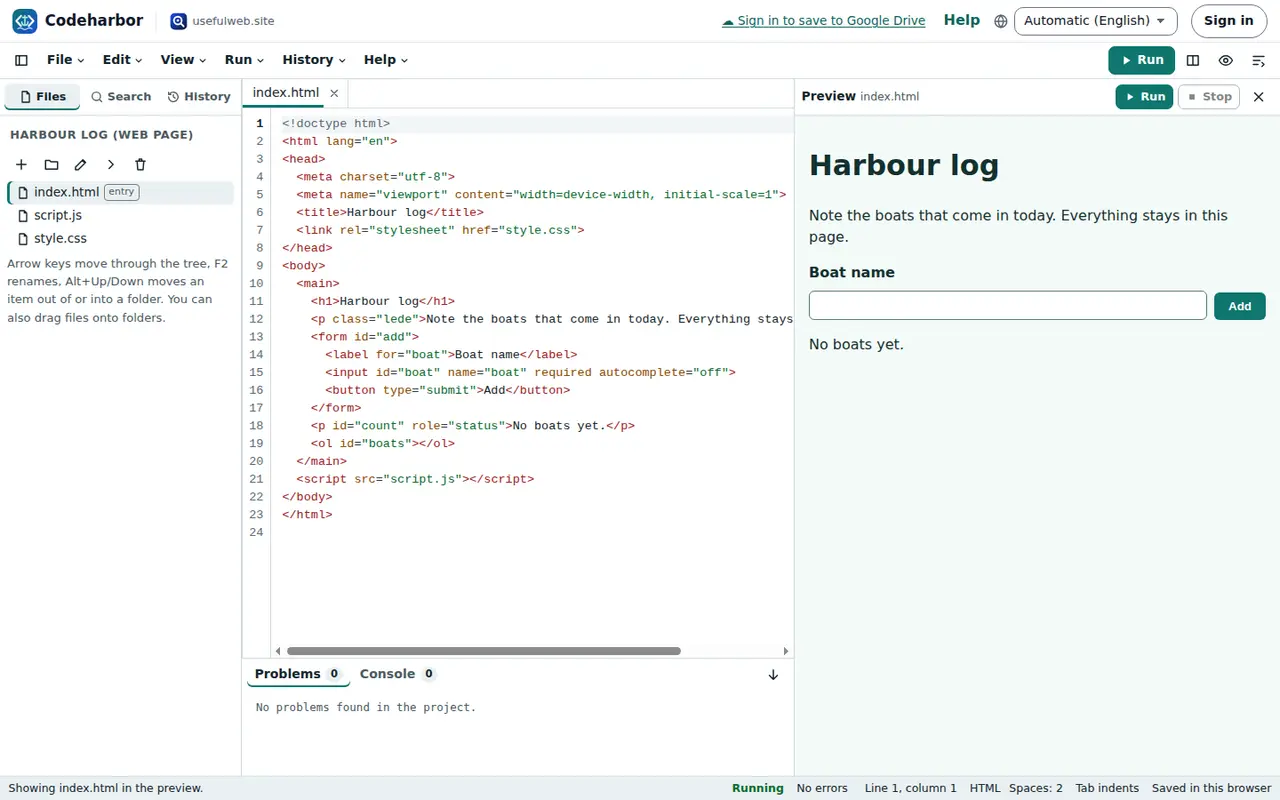
The parts of the screen
- Sidebar (left) with three tabs: Files, Search and History. The button with the sidebar icon in the toolbar hides it.
- Editor (middle) with one tab per open file. The Split editor button shows two editors side by side.
- Preview (right) for web pages and Markdown. The eye button shows or hides it.
- Problems and Console (bottom). Problems lists mistakes in the current file, the console shows what your code prints.
- Status bar (bottom line): the current line and column, the language, the indentation and whether the project is saved.
Files and folders
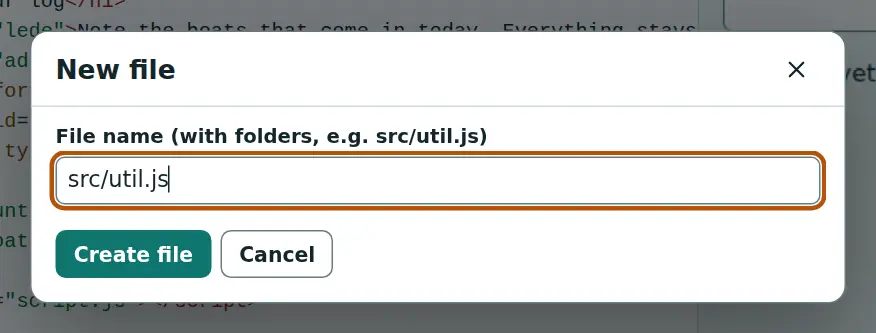
The small buttons above the tree create a new file, a new folder, rename, move to folder and delete the selected item. In the new-file dialog you can type a path with folders, for example src/util.js — missing folders are created for you.
The tree works with the keyboard: ↑ ↓ move, → opens a folder, ← closes it, Enter opens a file, F2 renames and Delete deletes. To move a file, drag it onto a folder, or press Alt+↓ to move it into the next folder and Alt+↑ to move it out of its folder.
Where your work is kept
Every change is saved in this browser automatically; the status bar says Saved in this browser. To keep a copy elsewhere use File → Save project file (a .codeharbor.json file with all files and commits) or File → Export as ZIP. Open either again with File → Open project file….
Signed in, you can also save a project into a Teamspaces workspace and work on it with others — see Export, import and teamwork.
Ready to try it?