Tutorial 6 of 6
Export, import and teamwork
Intermediate 8 min
Bring a folder in as ZIP, export your project, save it as a file, and share it in a Teamspaces workspace where changes from teammates are merged file by file.
ZIP import and export
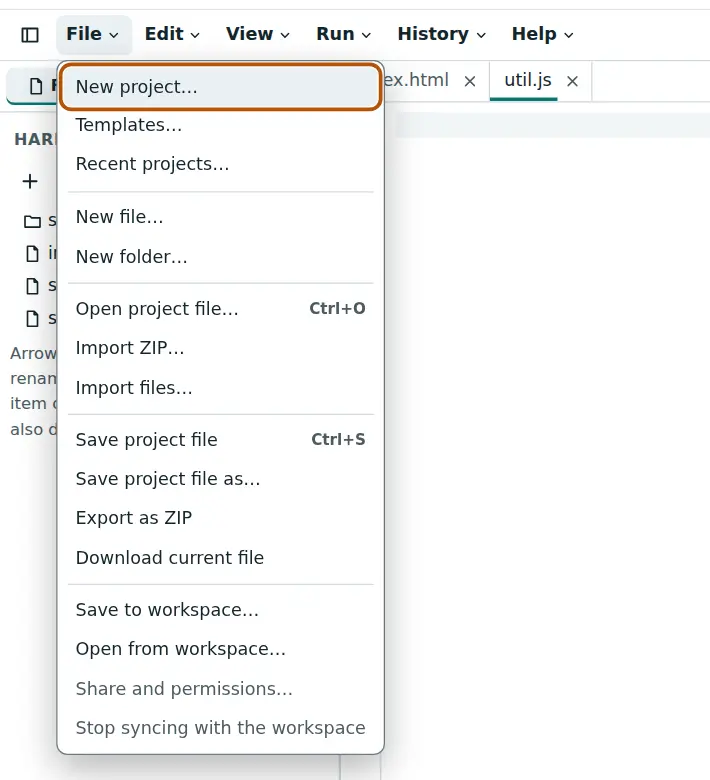
File → Import ZIP… opens a ZIP archive as a new project and keeps its folder structure. When every file sits in one top folder — as in ZIPs downloaded from GitHub — that folder is left out. Text files open in the editor; images and other binary files are kept and shown in previews, and files larger than 1 MB are skipped with a message.
File → Export as ZIP saves the whole project as a ZIP archive you can unpack anywhere, open in another editor or run on your computer. File → Import files… adds single files to the selected folder, and File → Download current file saves the open file alone.
The project file
File → Save project file writes one .codeharbor.json file with every file, folder, setting and commit. It is the most complete copy of a project: open it with File → Open project file… on any computer. In browsers that allow it, the next save goes to the same file.
Bundlekeep also finds your Codeharbor projects when it makes a backup of all your apps.
Share a project in a workspace
With an account you can keep a project in a Teamspaces workspace. Choose File → Save to workspace…, pick the workspace and confirm. From then on every change is saved to the workspace automatically, and the chip in the toolbar shows the workspace and who else is looking at the project.
Teammates open it with File → Open from workspace… or a link from the workspace. Changes from others arrive while you work:
- If you have no unsaved changes, your editor shows their version right away.
- If both of you changed the project, Codeharbor merges file by file: different files never get in each other’s way, and changes in different parts of the same file are combined.
- Where both of you changed the same lines, the file gets conflict markers (
<<<<<<<,=======,>>>>>>>) with both versions. Keep the right one, delete the markers, and the next save shares the fix.
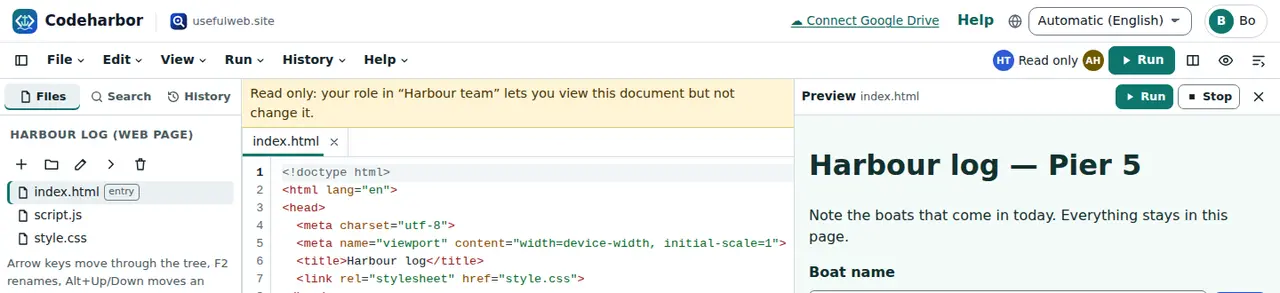
Members with the viewer role can read along but not change anything; the editor is read-only and says so. File → Share and permissions… changes roles, and Stop syncing with the workspace turns the project back into a private copy in your browser.
Commits and snapshots stay in your browser — the workspace holds the files, folders and settings. Large projects are stored as several workspace documents of up to 1.5 MB each, so a project can grow to 8 MB.
Ready to try it?