Tutorial 2 of 6
Editing faster — find, replace, palette and shortcuts
Beginner 7 min
Find and replace with regular expressions, jump to a line or file, use the command palette, split the editor, comment lines and choose what the Tab key does.
The editor in Codeharbor is a real text field with the colours drawn behind it. Everything you know from text fields works — selecting with Shift, copy and paste, your screen reader and the on-screen keyboard — and a few code-editor helpers come on top.
Typing helpers
- Enter keeps the indentation of the line and indents one step more after
{,[,(or:in Python. - Ctrl+/ comments or uncomments the selected lines in the comment style of the language (
//,#,<!-- -->,/* */). - Ctrl+] and Ctrl+[ indent and outdent the selected lines.
- When the caret stands next to a bracket, its partner is outlined. Ctrl+Shift+\\ jumps to it.
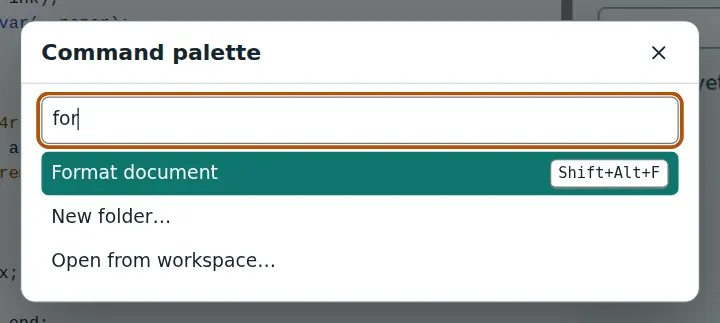
- Shift+Alt+F formats JSON, CSS and HTML files.
Find and replace
Ctrl+F opens the find bar above the editor, Ctrl+H adds the replace field. The three small buttons switch on match case (Aa), whole word (W) and regular expression (.*). The counter shows “3 of 12”; Enter and Shift+Enter go to the next and previous match, Escape closes the bar.
With regular expressions, $1 in the replacement inserts the first group: searching (\w+)@example\.org and replacing with $1@example.com keeps the names.
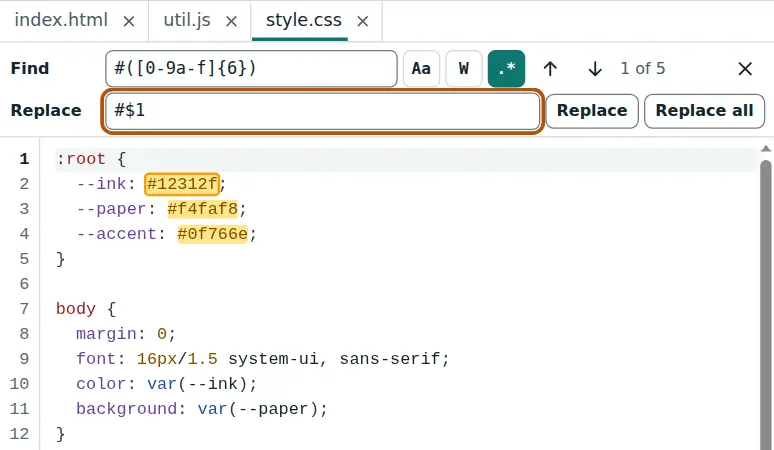
To search all files, open the Search tab in the sidebar (Ctrl+Shift+F). Results are grouped by file; select one to open the file at that line. Only in files matching limits the search, for example src/**, *.css. Replace all asks before it changes anything.
Jump around
- Ctrl+G — go to a line, or a line and column like
12:4. - Ctrl+P — go to a file by typing part of its name.
- Ctrl+Shift+P — the command palette with every command of the app. Type a few letters, choose with the arrow keys and press Enter.
Split view
Split editor in the toolbar (or View → Split editor) shows the current file on both sides. Open another file in the side that has the focus to compare two files, or keep the HTML on the left and the CSS on the right.
What the Tab key does
By default Tab indents, as in every code editor. Keyboard users who want Tab to move to the next control press Ctrl+M; the status bar then says Tab moves focus. Press Ctrl+M again to switch back. Help → Keyboard shortcuts (or ? outside the editor) lists every key.
Ready to try it?