Tutorial 4 of 6
Problems, formatting and Markdown preview
Beginner 6 min
See syntax errors while you type, format JSON, CSS and HTML, and write documentation with a live Markdown preview and outline.
Problems while you type
Codeharbor checks the open file while you type and lists what it finds in the Problems panel. Each entry names the line and column; select it to put the caret there. The line number in the gutter turns red, and the place is underlined in the editor.
What is checked:
- JSON — strictly, as the standard says: no comments, no trailing commas, no single quotes. Duplicate keys are warnings.
- YAML — tabs in indentation, lines indented more or less than their neighbours, missing colons, unclosed quotes, duplicate keys.
- JavaScript and TypeScript — unclosed brackets, strings, comments and template literals, and brackets that close the wrong thing.
- CSS — braces that close nothing or are never closed, unclosed comments and strings.
- HTML — elements that are closed in the wrong order or never closed.
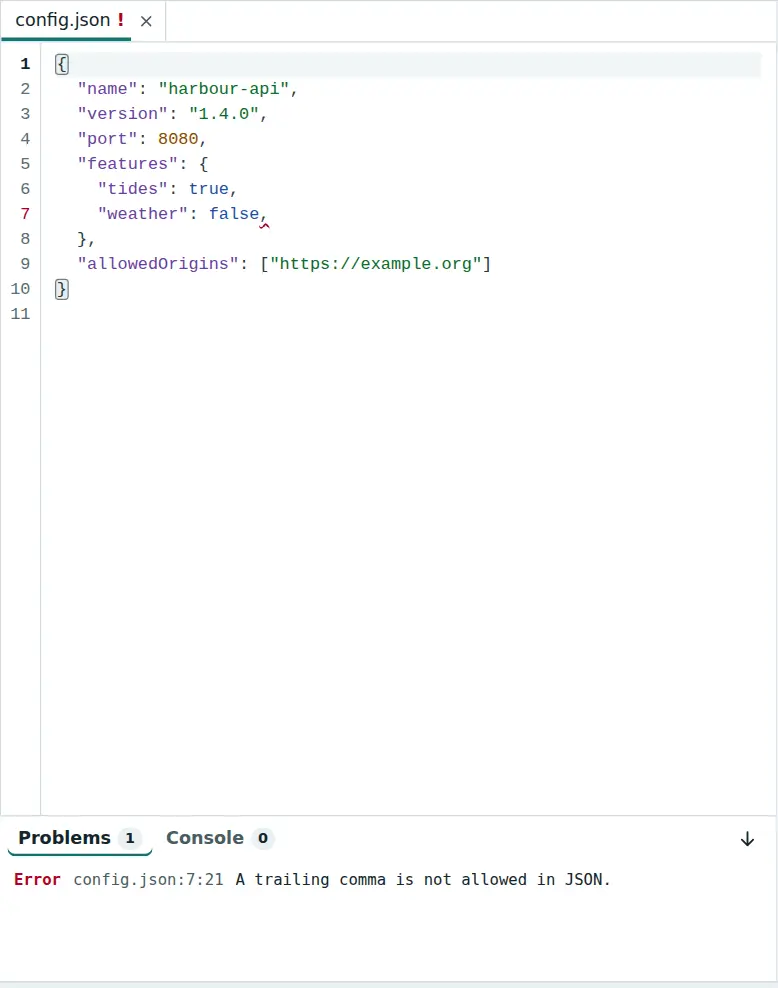
The checks read your code as text and never run it. They do not replace a linter or a compiler — they catch the mistakes that stop a file from loading at all.
Formatting
Edit → Format document (Shift+Alt+F) re-indents the file:
- JSON — one value per line, with the indentation from Editor settings…
- CSS — one declaration per line inside indented rule blocks
- HTML — block elements on their own lines; inline elements,
<pre>and<textarea>stay as they are
Formatting is a single step you can undo with Ctrl+Z. A file with errors is not formatted; the status bar says why.
Markdown preview
Open a .md file and the preview shows it rendered — headings, lists, task lists, tables, code blocks with colours, links and images from the project. The preview follows your typing.
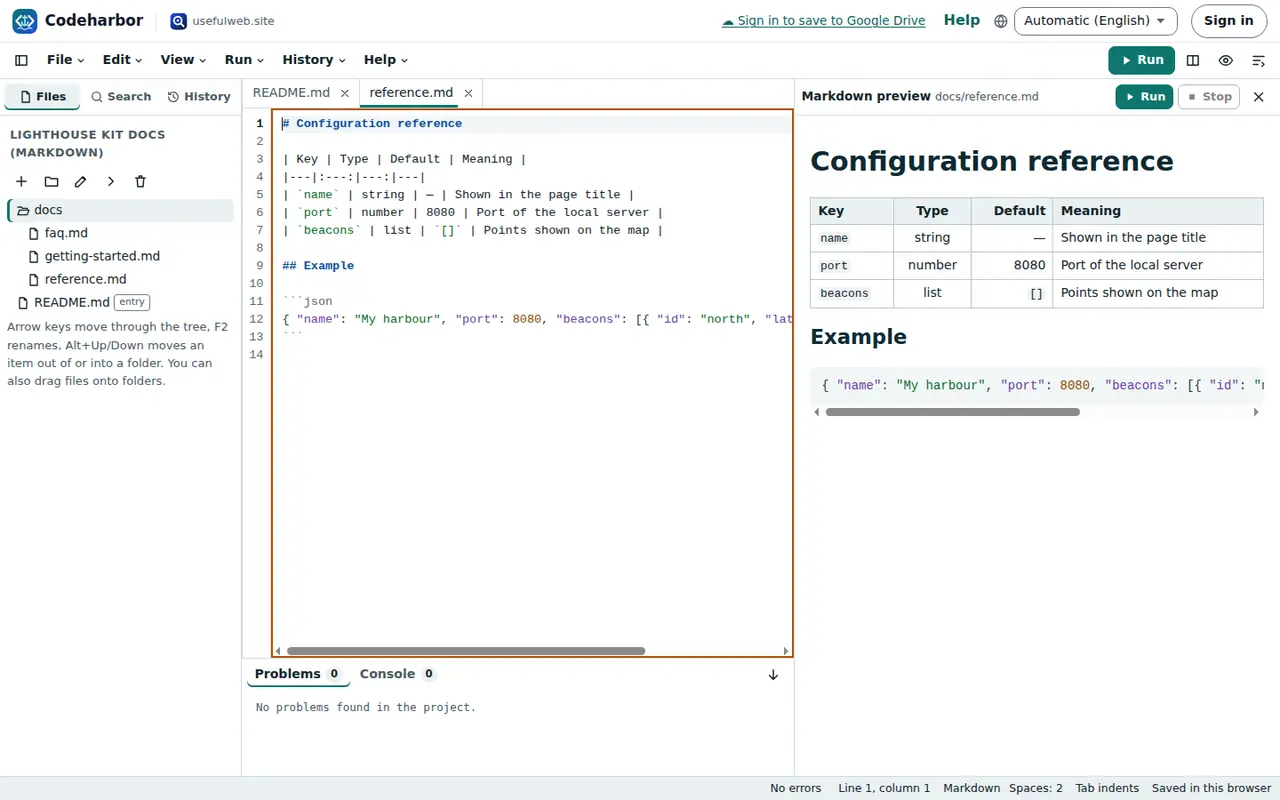
Links to other Markdown files of the project open them in the preview. Raw HTML inside Markdown is shown as text, and only web, mail and project links become clickable — so a README you received cannot run anything.
The same checks are available without the app: the tools Codeharbor Format & Check and Codeharbor Markdown Preview (listed under Built-in tools on the Codeharbor start page) take pasted code, and scripts and AI agents can call them through the API or MCP.
Ready to try it?